
This is a legacy form building tool and will not be supported or updated in a future product release. For a fully supported form building tool, we recommend using the Forms & Workflow (OpenForms) platform. For more information, see our article on connecting Forms & Workflow with this CMS and the Forms & Workflow help centre.
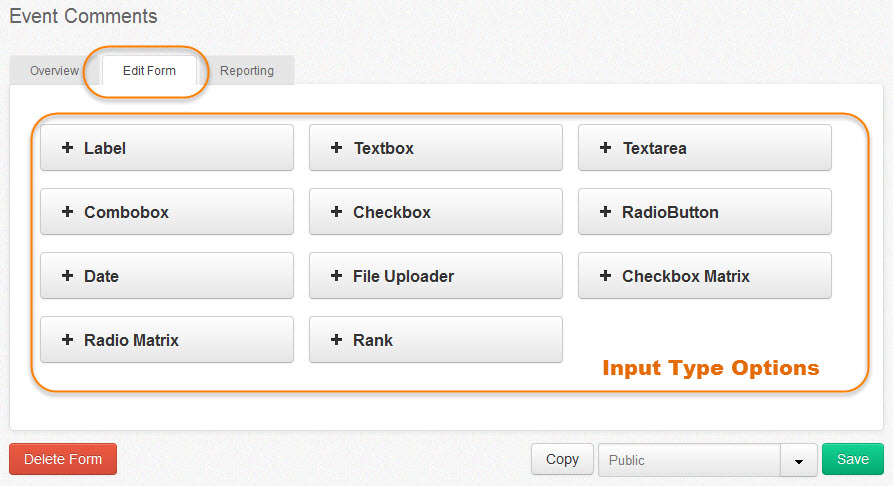
The Edit Tab is used to configure the input fields for respondents to enter responses on the form. By using various field input types, you can set questions and determine the preferred method for the respondent to provide response data, which can be used for reporting.
Things to Consider
When putting together the structure of the form, consider the questions or information you want from the respondent and determine the best method in which you would like that information recorded. For instance:
- How is the response data going to be used?
- Does the data received suit my reporting methods?
- Do you want the respondent to provide a short or long text response?
- Do you want the respondent to select from a list of pre-determined answers?
- Do you want the respondent to select from multiple answers or force them to choose only one pre-determined answer?
- Do they need to set a date?
- Is there a need for them to upload a file?
- Do you need them to rank items?
You can then decide the best field input type for the question to collect the appropriate data for your purpose.
Adding Fields to the Form
To select an input type, click on the + symbol, and the field will appear below the input type area.

To edit the field properties or amend the settings for the field, click on the edit pencil.
You can change the order of the fields by dragging and dropping them into position.
To delete a field, click on the trash can to the right of the field.
See Form input type fields explained to see an overview of available field types and the settings that can be applied to control the responses.
Field Option Examples

Once you have completed entering the form fields and saved the contents, the form is ready to be previewed and adjusted if needed. It can also be inserted into a page to be published in the live environment. See Form Preview and Adding a form to a page for instructions.